


 About
About
 Terms
Terms
 Privacy
STL to OBJ Converter: A Complete Guide to Converting 3D Models
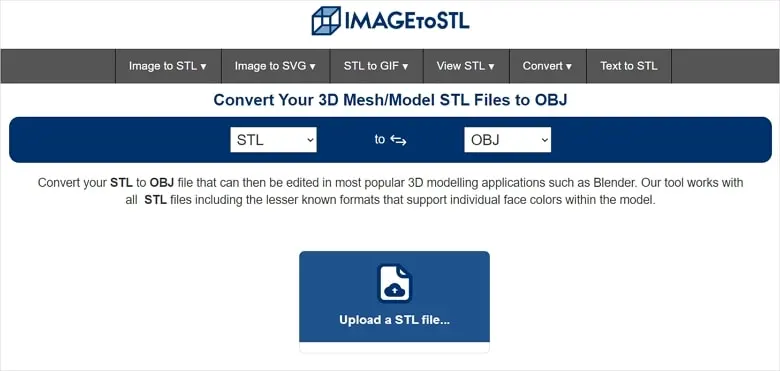
Working with 3D models often requires converting files between different formats to maintain compatibility with design software, rendering applications, and digital modeling tools. STL is widely used for 3D printing, while OBJ is popular for 3D modeling, animation, and visualization. If you need to move a model into software that supports OBJ, using an stl to obj converter can help simplify the process and make your files easier to work with.
Although both formats represent three-dimensional objects, they store information differently. Understanding these differences can help you select the right format for your project, avoid compatibility issues, and preserve important model details during conversion.
What Is an STL File?
STL stands for stereolithography, a file format commonly associated with computer-aided design (CAD) and additive manufacturing. It describes the surface geometry of a three-dimensional object using a collection of triangular faces.
These triangles form a mesh that represents the model's external shape. The format is popular because it is relatively simple and supported by a wide range of 3D printers, slicing applications, and modeling programs.
STL files are particularly useful for preparing objects for manufacturing. However, the format has limitations. Standard STL files do not typically store material definitions, textures, or detailed color information. This makes them less suitable for projects that require advanced visual presentation or material editing.
Despite these limitations, STL remains an important format for engineers, product designers, hobbyists, and professionals who regularly work with physical prototypes.
What Is an OBJ File?
OBJ is a widely supported 3D geometry format developed for representing three-dimensional objects. It can store vertex positions, surface normals, texture coordinates, and polygonal face information.
Unlike STL, OBJ can also work with accompanying material files, commonly known as MTL files. These files describe material properties, such as colors and texture references, that compatible applications can use when rendering a model.
OBJ is frequently used in 3D animation, game asset preparation, architectural visualization, product rendering, and digital art. Its broad compatibility makes it a convenient choice for moving models between different creative applications.
One important distinction is that OBJ does not automatically add textures or materials to an STL model. If the original STL contains only geometric information, converting it to OBJ will not recreate material details that were never present in the source file.
Why Convert STL to OBJ?
There are several practical reasons to convert an STL model into OBJ format. The most appropriate reason depends on your software, workflow, and intended use.
1. Improve Compatibility With 3D Software
Some 3D modeling and rendering applications work more conveniently with OBJ files. Converting an STL model allows you to import its geometry into a compatible environment without rebuilding the object from scratch.
This can be particularly helpful when working across different applications or collaborating with designers who use alternative software.
2. Prepare Models for Rendering
OBJ is commonly used in rendering workflows because it can support geometry alongside material and texture references. Once the model is converted, you can assign appropriate materials, apply textures, and adjust its appearance in compatible software.
Remember that these visual properties may need to be created separately if they were not included in the original STL file.
3. Support Advanced Modeling Workflows
Designers often need to modify a model's shape, adjust its mesh, or incorporate it into a larger scene. OBJ can provide a useful interchange format for these tasks.
However, converting a file does not automatically make its geometry easier to edit. STL meshes may contain numerous triangles, so additional retopology or mesh cleanup could be necessary for complex modeling operations.
4. Simplify File Sharing
When a project involves multiple applications, using a commonly supported format can make file exchange easier. OBJ is recognized by many 3D tools, making it a practical option for sharing geometric assets with designers, artists, and visualization specialists.
Before sharing a converted model, confirm that the recipient's software supports the file and any associated material or texture files.
How to Convert an STL File to OBJ
Converting an STL model is generally straightforward. The exact process depends on the conversion tool you choose, but most workflows follow a similar sequence.
Step 1: Prepare Your STL File
Locate the STL file you want to convert and check that it opens correctly in a compatible 3D application. If the model contains missing surfaces, damaged geometry, or other mesh problems, repairing those issues before conversion may improve the results.
It is also useful to confirm the model's dimensions and orientation before starting.
Step 2: Choose a Conversion Tool
Select a converter that supports your source and destination formats. An online tool can be convenient when you want to convert a file without installing additional desktop software.
Before uploading a file, review the tool's supported formats, file-size limits, and privacy practices, particularly if your model contains confidential design information.
Step 3: Upload the STL Model
Open the conversion tool and select the STL file from your device. Depending on the service, you may be able to browse for the file or drag it into an upload area.
Wait for the upload to finish before proceeding. Large or detailed models may require additional processing time.
Step 4: Select OBJ as the Output Format
Choose OBJ as the destination format if the tool offers a format-selection option. Check any available conversion settings and ensure that the selected output matches the requirements of your target application.
Some tools provide additional options, while others automatically handle the conversion.
Step 5: Convert and Download the File
Start the conversion and wait until processing is complete. Download the resulting OBJ file and save it in a suitable project folder.
If the conversion produces an MTL file or other associated assets, keep them together with the OBJ file. The OBJ may reference those external files, so separating them could prevent materials or textures from loading correctly.
Step 6: Verify the Converted Model
Open the converted file in your preferred 3D application. Inspect the model's shape, dimensions, surface details, and orientation.
Look for missing faces, unexpected changes, or differences in scale. If the model will be used for manufacturing, rendering, or a professional project, perform any necessary validation before relying on the converted file.
STL vs. OBJ: Understanding the Differences
Both formats are useful, but they serve somewhat different purposes.
|
Feature |
STL Format |
OBJ Format |
|
Primary use |
3D printing and mesh exchange |
Modeling, rendering, and asset exchange |
|
Geometry |
Triangular mesh |
Vertices, normals, and polygonal faces |
|
Material support |
No standard material or texture support |
Supports material references through accompanying files |
|
Texture coordinates |
Not typically included |
Supported |
|
Color information |
Limited and implementation-dependent |
Can work with material definitions |
|
File structure |
Relatively simple |
Text-based geometry with optional associated files |
|
Common applications |
Slicers and manufacturing tools |
Modeling and visualization software |
The best format depends on the job. STL is often suitable when preparing a model for a 3D printer, while OBJ can be more convenient when working with geometry in a broader digital design workflow.
Neither format is universally better. Choosing the right one helps reduce unnecessary conversions and improves compatibility with your intended software.
Common Problems During STL to OBJ Conversion
Although file conversion is usually simple, a few issues can affect the result.
Missing Textures or Materials
An STL file usually contains geometry rather than complete visual material information. Consequently, the converted OBJ may appear plain or untextured.
To address this, assign materials in your 3D software or import the required texture assets separately. If the conversion tool generates an MTL file, verify that its references point to the correct files.
Incorrect Scale or Dimensions
Models may appear larger or smaller than expected because applications handle units differently. STL files do not provide a universally enforced unit system, so dimensions can be interpreted differently across workflows.
Measure the converted model and adjust its scale if necessary before using it in a production environment.
Complex or Heavy Meshes
A detailed STL model may contain a large number of triangles. Converting the file does not necessarily reduce its polygon count, and the resulting OBJ can remain difficult to edit.
Mesh decimation, retopology, or other optimization techniques may help, depending on whether you need to preserve fine details or improve editing performance.
Damaged Geometry
Holes, intersecting surfaces, and non-manifold edges can create problems in downstream applications. If these issues already exist in the original STL, they may remain after conversion.
Use mesh inspection and repair tools to identify and correct defects before continuing with modeling or manufacturing tasks.
Best Practices for Better Conversion Results
A reliable conversion workflow involves more than changing a file extension. Following a few basic practices can help you avoid common problems.
-
Keep a copy of the original: Preserve the STL file so you can repeat the conversion or return to the original geometry.
-
Check mesh quality: Repair obvious geometry problems before converting the model.
-
Confirm units: Verify dimensions in the destination application rather than assuming the scale will remain consistent.
-
Keep related files together: Store the OBJ, MTL, and referenced textures in an organized project folder.
-
Choose the correct destination format: Confirm that OBJ meets the requirements of the software or workflow you intend to use.
-
Review privacy requirements: Avoid uploading confidential models to an online service unless its data-handling practices meet your requirements.
-
Inspect the final result: Open the converted file and check that its geometry and other required properties are correct.
These practices are especially valuable when working with product prototypes, architectural assets, educational models, or other files that need to move between multiple applications.
Final Thoughts
Converting STL files to OBJ can make 3D models more convenient to use across modeling, rendering, and visualization workflows. While STL remains popular for 3D printing, OBJ offers useful support for geometry, texture coordinates, and external material references.
The key is to choose an appropriate converter, prepare your source file, verify the output, and retain any associated assets. Understanding the differences between these formats helps you avoid common conversion issues and make better decisions about how to manage your 3D projects.
Whether you are a beginner exploring 3D design or an experienced professional handling complex assets, a dependable conversion workflow can save time and simplify file compatibility.
For additional file-conversion options and tools, visit Lets Convert.
❤️ Support Friends Aim! View a sponsored ad to help cover our website costs. Thanks!
Support Us — Ad 1 Support Us — Ad 2- Arts, Culture & Design
- Automotive & Transport
- Accounting & Finance
- Advertising & Marketing
- Agriculture & Farming
- Business & Consulting
- Books & Publishing
- Building & Construction
- Beauty & Personal Care
- Baby, Kids & Parenting
- Charity & Social Causes
- Crafts & Handmade
- Careers & Jobs
- Computers & Laptops
- Consumer Electronics
- Entertainment & Events
- Food & Beverages
- Delivery & Logistics
- Digital Media & Content
- Dating & Relationships
- E-Commerce & Retail
- Education & Learning
- Energy & Environment
- Fitness
- Fashion & Apparel
- Gaming & Toys
- Government & Legal
- Gardening
- Health & Medical Care
- Home Decor & Furniture
- IT & Software
- Industrial & Tools
- Import & Export
- Jewelry & Watches
- Lifestyle & Wellness
- Legal Services & Law
- News & Media
- News & Current Affairs
- Religion & Faith
- Sports
- Technology
- Travel & Tourism
- Weddings & Events
- Other

 Arabic
 French
 Spanish
 Portuguese
 Deutsch
 Turkish
 Dutch
Dutch
 Italiano
 Russian
 Romaian
 Portuguese (Brazil)
 Greek
Greek