


 About
 Terms
 Privacy
Five Common Mistakes People Make When Configuring Their Television Display Settings
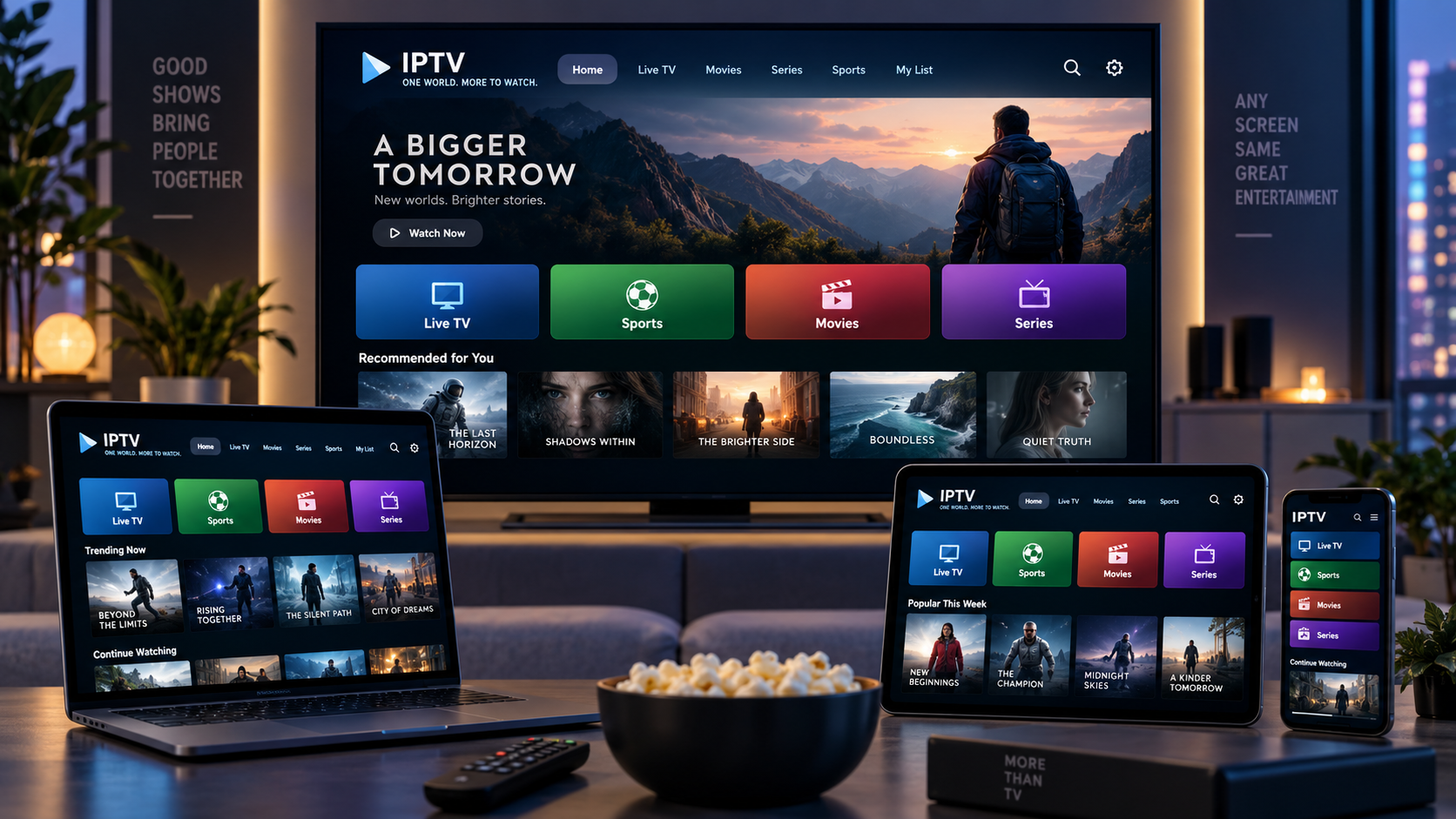
Television display settings have a significant influence on how movies, sports, television programmes, and streaming content look on screen. Even a high-quality television may produce disappointing results when its picture settings are poorly configured. Colours can appear unnatural, fast-moving scenes may look blurry, and dark details can become difficult to distinguish. Understanding the available settings helps viewers get a more balanced picture without immediately investing in additional equipment.
A useful starting point is understanding display calibration and how different adjustments affect the image. Calibration does not necessarily require professional equipment or advanced technical knowledge. For most households, avoiding a few common configuration mistakes and making careful adjustments can noticeably improve everyday viewing.
1. Using Excessively High Brightness Settings
One of the most common mistakes is setting the television's brightness too high. Many people assume that a brighter screen automatically produces a better picture, particularly when watching television in a well-lit room. However, excessive brightness can make dark scenes appear washed out and reduce the visibility of subtle details.
Brightness and backlight settings also serve different purposes. On many televisions, the backlight controls the overall light output of the screen, while the brightness control affects how dark areas of the image are displayed. Changing the wrong setting can make the picture look less natural.
A better approach is to consider the room's lighting conditions. A television used in a bright living room may need a higher light output than one placed in a bedroom with curtains and limited external light. Adjust the settings gradually and compare familiar scenes rather than choosing the brightest available option.
2. Leaving the Picture Mode on Dynamic
Most modern televisions include several preset picture modes, such as Standard, Cinema, Movie, Sports, and Dynamic. These modes change multiple image settings at once, including colour temperature, contrast, sharpness, and brightness.
Dynamic mode is often designed to make the picture stand out in brightly lit retail environments. It may increase brightness and colour intensity, which can make images look impressive at first glance. However, the result may be less accurate for ordinary home viewing.
For films and television programmes, Cinema or Movie mode is often a sensible starting point. These presets generally aim for a more natural appearance, although the exact results vary between television models.
Sports mode can be useful for certain live events because it may adjust motion and brightness settings. Nevertheless, viewers should check whether it introduces unnatural colours or excessive image processing. Selecting a suitable preset for the content being watched is usually more effective than relying on one mode for everything.
3. Setting Sharpness Too High
Sharpness controls are frequently misunderstood. Increasing the sharpness value does not necessarily add genuine detail to an image. Instead, many televisions use digital processing to emphasize edges, sometimes creating artificial outlines around objects.
This effect can become particularly noticeable when watching high-definition or 4K content. Fine details may appear harsh, while text, faces, and objects can develop visible halos. The picture may look artificially enhanced rather than clearer.
A practical way to adjust sharpness is to begin with the television's default or neutral setting. Display an image containing text, facial details, and natural edges, then make small changes while observing the result.
If the picture begins to show outlines or exaggerated edges, reduce the setting. The objective is to preserve the original detail in the source material instead of adding unnecessary processing.
4. Ignoring Motion Smoothing Settings
Motion smoothing is intended to make movement appear more fluid. Television manufacturers use different names for this feature, including motion interpolation, motion enhancement, and motion processing.
Although it can help reduce perceived blur during certain types of content, excessive motion processing can create an unnatural appearance. Films may develop the so-called soap-opera effect, where cinematic scenes look unusually smooth and resemble live television productions.
Motion settings can also introduce visual artefacts around moving objects, especially when the source video contains complicated movement or rapid scene changes.
Viewers should experiment with these features rather than assuming the highest setting is best. Some people prefer motion smoothing for sports, while others prefer to disable it when watching films. A low setting may offer a reasonable compromise, depending on the television and the content.
5. Choosing the Wrong Aspect Ratio
Aspect ratio determines how an image fits the television screen. Modern widescreen televisions commonly use a 16:9 format, but not all video sources are produced in that shape.
A frequent mistake is selecting a zoom or stretch setting to fill the entire screen. Although this may remove black bars, it can distort the original image. People may look wider or narrower, subtitles may become partially hidden, and important details near the edges can disappear.
The correct option is usually called Original, Just Scan, Screen Fit, or a similar name, depending on the manufacturer. These settings aim to display the image without unnecessary cropping or stretching.
Black bars are not always a problem. Some films use wider aspect ratios than standard television programmes, so black areas above and below the picture may be part of the original presentation. Keeping the correct proportions is generally better than forcing every video to fill the screen.
Why Different Content Requires Different Settings
Television settings do not always produce identical results across every type of content. A configuration that works well for an animated programme may not be ideal for a dark film or a fast-moving football match.
Streaming quality also matters. A low-resolution video may appear soft on a large 4K screen, regardless of how carefully the television has been configured. Similarly, compression artefacts in a source video cannot always be corrected through picture adjustments.
It is worth considering the following factors when reviewing display performance:
-
Room lighting: Daylight and artificial lighting can influence perceived contrast and brightness.
-
Content resolution: Standard-definition, HD, and 4K videos may require different expectations.
-
Source quality: The original video quality places limits on the final image.
-
Viewing distance: Sitting too close can make compression and image-processing imperfections more noticeable.
-
Screen technology: LED, OLED, and other display types may respond differently to certain settings.
These considerations help viewers avoid changing settings unnecessarily when the actual limitation comes from the source material or viewing environment.
How to Adjust Television Settings More Effectively
A careful, step-by-step approach is usually better than changing several settings at once. Start by selecting an appropriate picture preset, then adjust brightness, contrast, colour, and sharpness individually.
Use familiar content when testing changes. A film scene with dark areas, a sports broadcast with fast movement, and a programme featuring natural skin tones can reveal different picture-quality issues.
It is also useful to record the original settings before making adjustments. If the picture becomes less natural, returning to the previous configuration will be easier. Some televisions include a reset option for individual picture modes, which can help when experimentation produces disappointing results.
Finally, remember that personal preference matters. Reference settings provide a useful starting point, but the best configuration should suit the television, room, content, and viewer.
Conclusion
Poor television picture quality is not always caused by outdated hardware or a weak video source. Incorrect brightness, unsuitable picture presets, excessive sharpness, aggressive motion smoothing, and improper aspect ratios can all affect the viewing experience.
By understanding what each setting does and making gradual adjustments, viewers can avoid common configuration mistakes and achieve a more balanced picture. Regularly reviewing settings when changing rooms, devices, or content types can also help maintain consistent results.
❤️ Support Friends Aim! View a sponsored ad to help cover our website costs. Thanks!
Support Us — Ad 1 Support Us — Ad 2- Arts, Culture & Design
- Automotive & Transport
- Accounting & Finance
- Advertising & Marketing
- Agriculture & Farming
- Business & Consulting
- Books & Publishing
- Building & Construction
- Beauty & Personal Care
- Baby, Kids & Parenting
- Charity & Social Causes
- Crafts & Handmade
- Careers & Jobs
- Computers & Laptops
- Consumer Electronics
- Entertainment & Events
- Food & Beverages
- Delivery & Logistics
- Digital Media & Content
- Dating & Relationships
- E-Commerce & Retail
- Education & Learning
- Energy & Environment
- Fitness
- Fashion & Apparel
- Gaming & Toys
- Government & Legal
- Gardening
- Health & Medical Care
- Home Decor & Furniture
- IT & Software
- Industrial & Tools
- Import & Export
- Jewelry & Watches
- Lifestyle & Wellness
- Legal Services & Law
- News & Media
- News & Current Affairs
- Religion & Faith
- Sports
- Technology
- Travel & Tourism
- Weddings & Events
- Other

 Arabic
 French
 Spanish
 Portuguese
 Deutsch
 Turkish
 Dutch
 Italiano
 Russian
 Romaian
 Portuguese (Brazil)
 Greek